

SqueezeVid Review: Free, Private Video Compression in Your Browser (2026)
We went through SqueezeVid's compressor, presets, pricing and 55+ tools. Here is how the no-upload video compressor works and who it suits.
SqueezeVid is a free online video compressor that does something most competitors don't: it compresses your file inside your browser with FFmpeg running as WebAssembly, so the video never leaves your device. There is no upload, no sign-up and no watermark on the result. For files up to 2 GB that is the whole story, and for bigger files there is a 10 GB in-browser beta and a paid server option. After reading through the SqueezeVid homepage, the pricing and privacy pages and a dozen of its tool pages, our view is that it is a strong pick for anyone who sends videos on WhatsApp, Discord or email and would rather not hand them to a third-party server.
The tool started life as a video compressor and has grown into a toolkit of more than 55 utilities covering video editing, audio conversion, GIFs, images and PDFs. That breadth matters less than the core design decision, though. Almost every comparison between online compressors comes down to the same question: where does the processing happen? SqueezeVid's answer is "on your machine" for nearly everything, and that answer shapes its strengths, its limits and its pricing.
This review walks through how the three compression modes differ, what controls you get, how the platform presets behave, how private the service really is, which of the extra tools are worth using, and what it costs. It ends with an honest list of what works and what does not, and an FAQ.
What SqueezeVid is and who it is built for
SqueezeVid describes itself as an online file toolkit built around privacy. Its about page says the team wanted a tool that respects your privacy, doesn't brand your videos and just works, and the product follows that brief: browser tools need no account, nothing is stamped onto the output, and the site runs on optional paid credits rather than on harvesting your files.
The audience is practical rather than professional. Think of a creator who has a 300 MB screen recording that WhatsApp will not take, a freelancer sending a client a draft cut by email, a gamer clipping a highlight for Discord, or someone who just wants a PDF packet merged without uploading personal documents to a random website. People who need batch automation, an API or fine control over codecs and two-pass encoding are better served by HandBrake or a scripted FFmpeg workflow, and SqueezeVid does not pretend otherwise.
The interface is available in more than a dozen languages, including German, Spanish, Turkish, Portuguese, French, Japanese, Korean and Arabic, which is useful if you share the tool with colleagues or clients abroad.
How the three compression modes differ
The most important decision in SqueezeVid is which of its three routes to use. The site spells out the trade-offs on its compress video without uploading page, and they come down to file size, privacy and how much work your own computer has to do.
Mode | Size limit | Upload needed | Best for |
|---|---|---|---|
Browser compression | Up to 2 GB | No | Most everyday videos |
Large browser compression (beta) | Up to 10 GB | No | Big MP4 or MOV files on a capable computer |
Server compression | Up to 10 GB | Yes | Very large files, slow computers, unsupported cases |
Browser compression: the default for most people
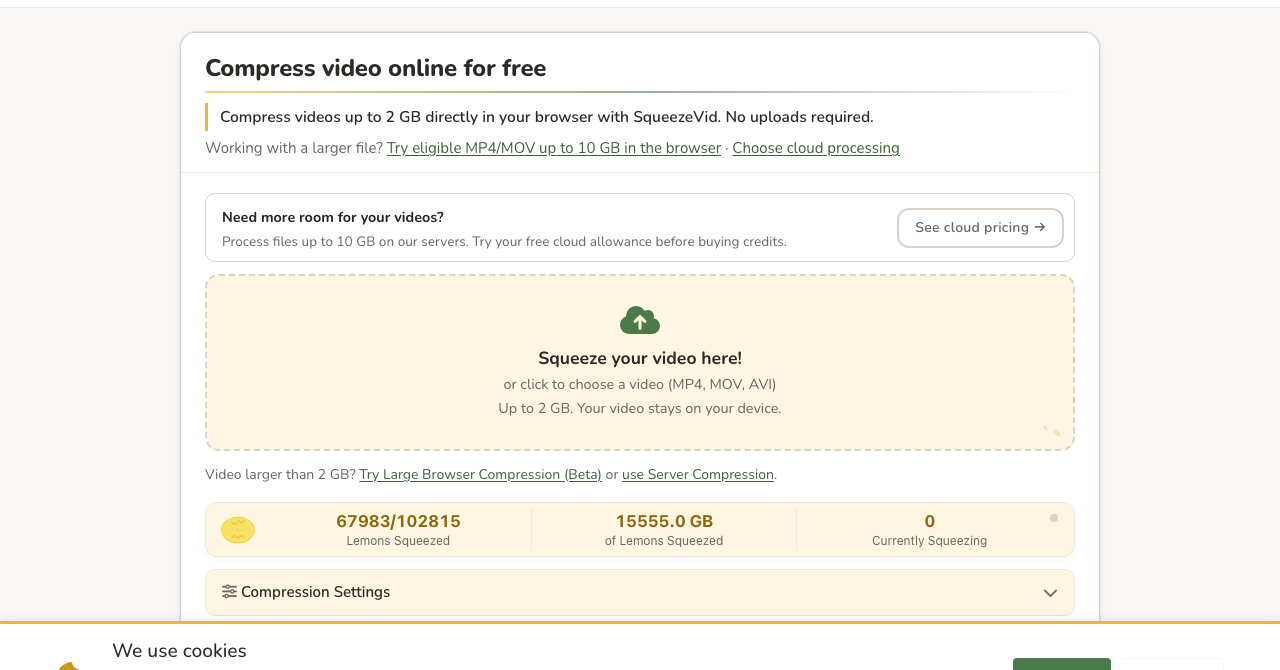
This is the mode on the homepage. Drop a file in, pick your settings, and FFmpeg compiled to WebAssembly re-encodes it locally. The drop zone says it plainly: up to 2 GB, and your video stays on your device. Because nothing travels over the network, compression starts immediately instead of waiting for an upload, and there is no download wait afterwards either.
Large browser compression: 10 GB without an upload
The large browser compression beta accepts eligible MP4 and MOV files up to 10 GB and still processes them on your device. The conditions are real, though. It needs H.264 or H.265 video, it does not support HDR footage or some audio formats yet, it keeps the original resolution (resizing requires server compression), it depends on your browser and device supporting it, and you need enough free disk space for the output. Think of it as a middle ground: more room than standard browser mode, more privacy than the cloud.
Server compression: when your computer is the bottleneck
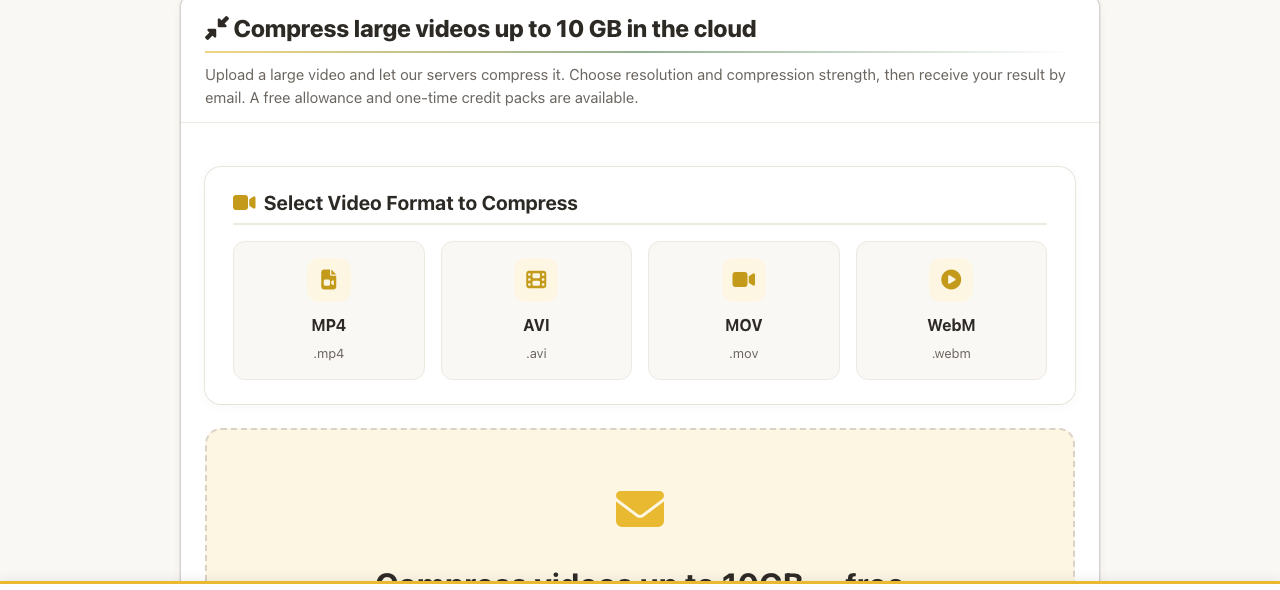
Server compression uploads the file and encodes it on SqueezeVid's servers, again up to 10 GB. The workflow is built for patience: once the upload finishes and the job starts, you can close the tab. SqueezeVid sends a "Processing Started" email and, later, a "Your Video is Ready" email with the download link. Each job has a UUID, and the Check Status page lets you look up progress with it. The page lets you pick the input format (MP4, AVI, MOV or WebM) and choose resolution and compression strength, as in the browser mode. Failed compressions return their credits.
What controls you get when compressing a video
Most online compressors give you a single "quality" slider and leave you guessing about the output size. SqueezeVid is more deliberate about it. Across the browser tools you can:
Set a target file size and see an estimated output size and saving before you commit.
Keep the original resolution or reduce it, which is usually the biggest single lever on file size.
Move a compression strength slider, set to 60% by default, to trade quality against size.
Work with MP4, MOV, AVI, WebM and MKV inputs, so you rarely have to convert first.
What stands out is the honesty about files that cannot shrink. If a video is already efficiently compressed, SqueezeVid says so and suggests lowering the resolution, for example to 75% of the original, instead of handing back a file that is barely smaller. That behaviour also lines up with the pricing model, because credits are only deducted when the output really is smaller than the input.
The practical advice that runs through the site's presets is worth repeating. A smaller target gives every second of video fewer bits, so short clips survive aggressive targets with little visible loss while long, fast-moving or 4K footage needs a bigger drop in resolution or a trim first. Preview the result before you share it.
How the platform presets and size-target pages behave
This is where SqueezeVid is most useful day to day. Every messaging app has its own upload limit, and the site has a dedicated page for each: WhatsApp, Discord, email, TikTok, Instagram, X (Twitter) and Telegram. There are also pages for fixed targets of 8, 10, 16, 25, 50, 100 and 200 MB, plus format-specific pages for MP4, MOV and AVI.
WhatsApp: a 60 MB target at 720p
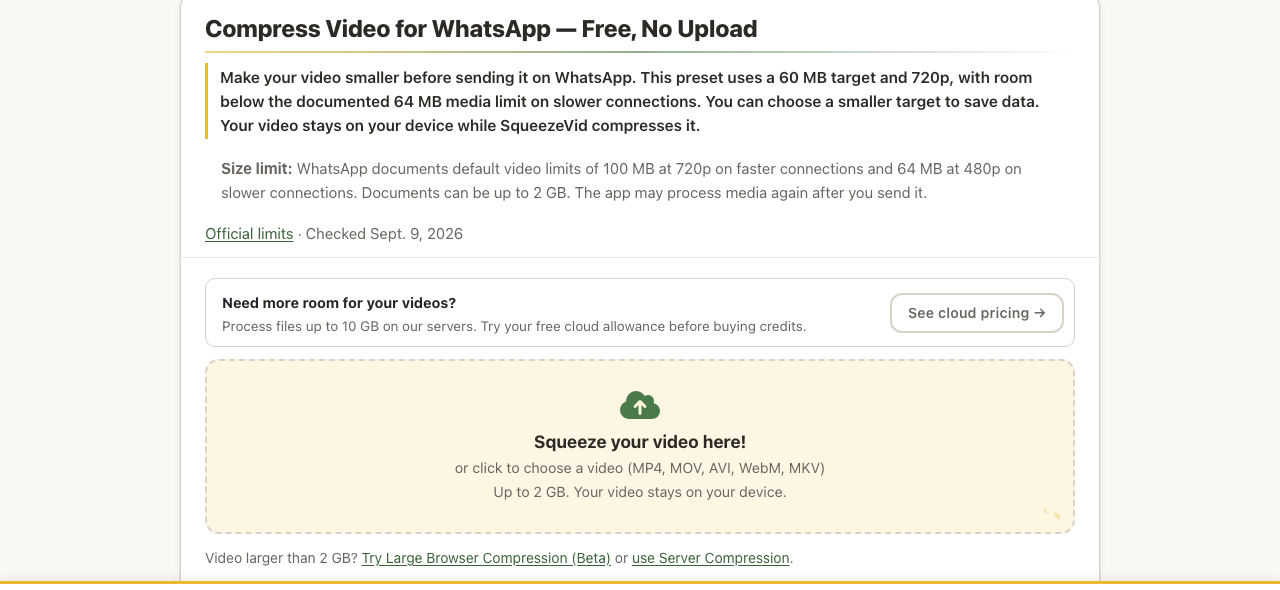
The WhatsApp preset defaults to a 60 MB target and 720p, leaving headroom under the documented 64 MB media limit on slower connections. The page cites WhatsApp's own limits (100 MB at 720p on faster connections, 64 MB at 480p on slower ones, documents up to 2 GB), links to the official source and shows the date it last checked them. It also warns, correctly, that WhatsApp may re-encode media after you send it, so compressing first controls the file you send but cannot stop WhatsApp changing it. If you care about quality, sending as a document is the safer route.
Discord and the 8 MB target
The Discord preset aims for 19 MB at 720p, just under the 20 MB free limit the page documents, and notes that Nitro Basic raises the cap to 50 MB and higher Nitro tiers to as much as 500 MB. It reminds you to confirm your own account's limit, because Discord checks the size before applying any compression of its own.
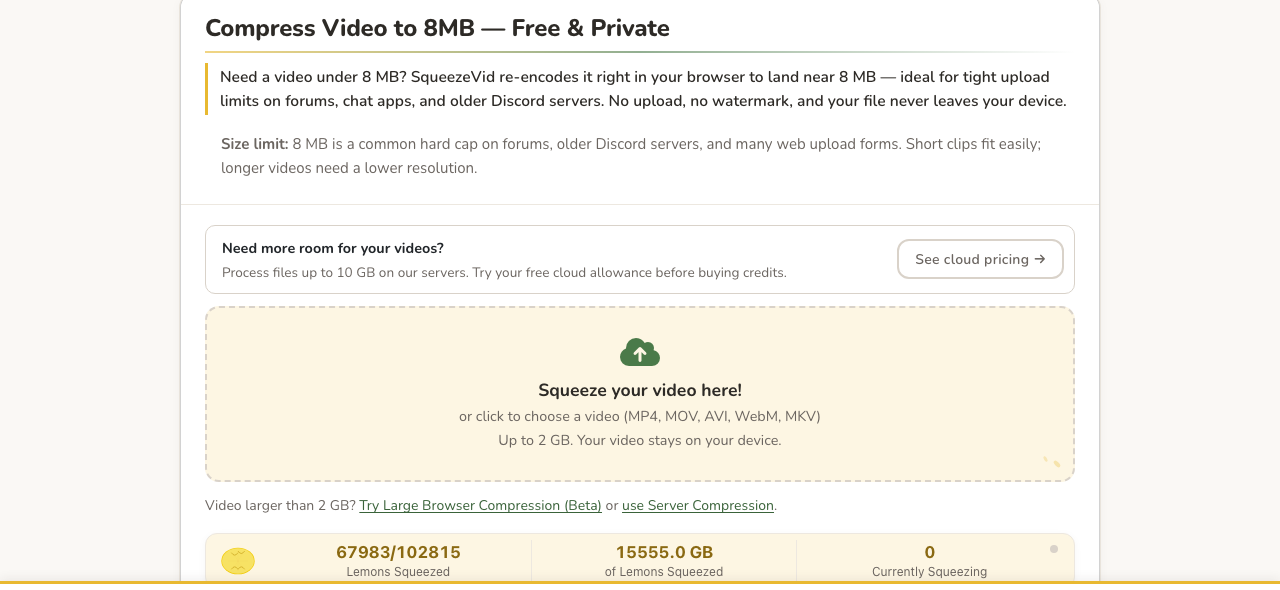
The compress video to 8 MB page covers the cap that still shows up on forums, older Discord servers and web upload forms. It builds a safety margin into its size estimate so you do not overshoot, and it says outright that short clips reach 8 MB with little visible loss while long or 4K videos need a bigger quality drop. If you fall short, the advice is to lower the resolution or trim the video and try again.
How to get the smallest file without ruining the video
SqueezeVid's own pages repeat the same handful of ideas, and they hold up in practice. Work through them in this order and you will usually hit your target without a second attempt.
Start with the size you actually need
Pick the destination first. If the video is going to WhatsApp, Discord or email, use the matching preset, because it already encodes that platform's limit with a margin. If the destination is a forum or a form with a hard cap, use the fixed-size page (8, 10, 16, 25, 50, 100 or 200 MB) instead of guessing a compression strength.
Trim before you compress
Every second you cut is a second that no longer competes for the same size budget. The trim tool re-encodes to frame-accurate cut points, so you can remove the dead air at the start and end, then compress what is left. For long recordings, this one step often matters more than any slider.
Lower resolution before quality
When a target is out of reach, reduce the resolution first. 720p is the default in the WhatsApp and Discord presets for a reason: it keeps short clips clear while freeing a large share of the bit budget. Long or fast-moving footage may need 480p, and the site suggests 75% of the original when a file will not shrink at all.
Preview, then share
Compare the result with the original before you send it. If the compressed file is larger than your limit, the site's guidance is to lower resolution or trim and retry, and in server mode you only spend a credit when the output is smaller.
How private is SqueezeVid really?
Privacy is the headline, so it deserves a closer look than the tagline. The private video compressor page makes the case: because compression runs in WebAssembly on your own machine, the video bytes stay on your device, which removes the biggest privacy risk of upload-based tools. The PDF merge page goes a step further and invites you to check for yourself by watching your browser's Network tab, where no file is sent while merging. That is a verifiable claim, not just a promise.
There are limits to the picture, and the privacy policy is where they appear:
Browser tools: files are processed locally. The site still collects anonymous usage data such as pages visited, features used and processing time, and uses cookies for theme, language and statistics. A cookie banner lets you accept analytics or decline.
Server compression: the video is uploaded and stored temporarily, and you can ask for it to be deleted at any time. The policy does not give a specific retention period, which is the one gap we would like to see closed.
Email: cloud compression collects your email address for verification codes, processing notifications and receipts, and the site may occasionally email people who used it about new tools, with an unsubscribe option.
In short, the privacy promise is strongest in exactly the modes most people will use, and weaker only where a server is unavoidable. That is a fair trade as long as you pick the mode knowing the difference.
How SqueezeVid compares with upload-based compressors
The private compressor page positions SqueezeVid against well-known online tools such as Clideo, FreeConvert and VEED, which upload your file to their servers before processing it. We have not benchmarked the tools against one another, so treat this as a comparison of design rather than of output quality. The design difference is real and it has three consequences.
Time: an upload-based tool makes you wait for the upload, the processing and the download. In browser mode SqueezeVid removes the first and last of those, which matters most on slow connections and large files.
Privacy: with no upload, there is no copy of your video on anyone else's server to be stored, breached or kept longer than you expected.
Data use: nothing consumes upload bandwidth, which helps if you are on a metered or mobile connection.
The price of that design is that your own hardware does the work. A powerful desktop will finish quickly, while an old laptop will take longer, and that is the point at which server compression, with its email notification, becomes the sensible choice rather than a fallback.
The extra tools worth knowing about
The tools directory lists 55+ utilities in seven groups: compress video (6 tools), convert video (8), audio (8), GIF (4), images (11), PDF (9) and a set of single-step video edits (9). Most of them follow the same on-device model. A few are worth singling out.
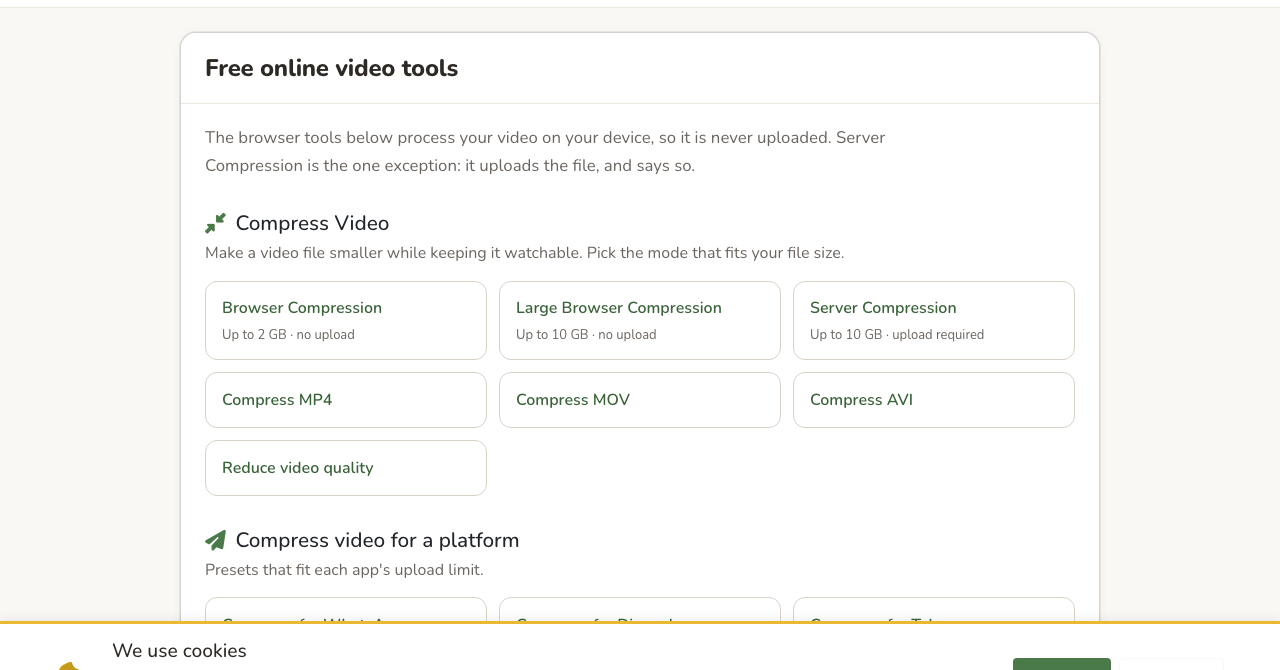
Trimming, converting and the rest of the video toolkit
The trim tool uses re-encoding rather than stream copy, so the clip starts on the exact frame you choose instead of snapping back to the nearest keyframe. You can set start and end points from the current frame or type timestamps, preview the selection, and export an MP4 with H.264 video and AAC audio. The video converter covers MP4, MOV, WebM, AVI and MKV, and the site says a typical five-minute video takes two to four minutes depending on your device. Beyond those there are tools to crop and resize, merge, mute, rotate, change speed, reverse and loop video, extract audio as MP3 and turn clips into GIFs.
Images, audio and GIFs
The image compressor handles JPG, PNG, WebP and HEIC, up to 50 images per batch with a 50 MB limit per file and 500 MB in total. You choose Light, Medium (the recommended default) or Strong compression, or give a target size between 100 KB and 2 MB per image, in which case it lowers quality first and dimensions second. EXIF location and camera details are always stripped from the compressed copy, which is a nice privacy touch. The honest caveat on the page is that PNG compresses less than JPG or WebP because it stores every pixel exactly. Audio tools convert between MP3, WAV, M4A, OGG and FLAC and include an MP3 cutter, and the GIF tools compress animated GIFs or turn them into much smaller MP4 files.
PDF tools
The PDF toolset covers merge, compress, split, rotate, delete pages and conversion to and from JPG and PNG. The merge tool accepts up to 50 files at up to 200 MB each and 500 MB in total, lets you reorder files with arrows, turns images into one page each, and keeps internal page links working. Bookmarks and outlines from the source PDFs are not preserved in the merged file, which is worth knowing before you merge a long report.
What SqueezeVid costs
Pricing is refreshingly simple and lives on the pricing page. Browser compression includes a free allowance of two videos per 30 days. Heavier use, and anything on the servers, runs on one-off credit packs with no subscription. Checkout is handled through Stripe, and the code is emailed to you.
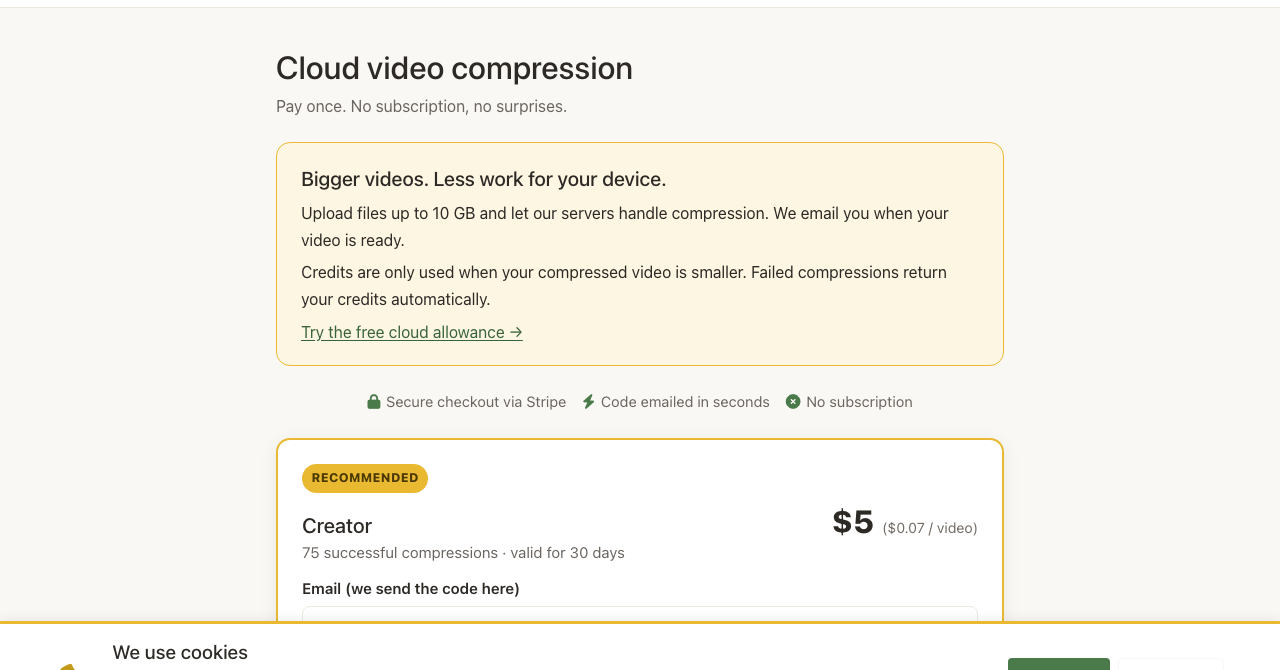
Pack | Price | Compressions | Per video |
|---|---|---|---|
Starter | $3 | 10 | $0.30 |
Creator (recommended) | $5 | 75 | about $0.07 |
Pro | $12 | 250 | about $0.05 |
All packs are valid for 30 days. Two rules make the model fairer than most. Credits are only used when the compressed file is actually smaller than the original, and failed compressions return their credits automatically. The trade-off is that purchases themselves are non-refundable, because the processing is on demand. The Creator pack is the clear sweet spot: five dollars for 75 compressions works out to roughly seven cents each.
What works well and what could be better
Strengths
Files are processed on your device for browser compression, with no upload and no account.
No watermark on the output.
A target-size workflow with an estimate before you start, plus honest advice when a file cannot shrink.
Presets for WhatsApp, Discord, email, TikTok, Instagram, X and Telegram, with sources and check dates on the limits.
A route for very large files, both in the browser (beta) and on the server.
Low-cost credits with no subscription and automatic refunds for failures.
A wide set of tools that share the same privacy model.
Weaknesses
Speed depends on your computer, so long or high-resolution videos can be slow on older machines.
The 10 GB in-browser mode is a beta, limited to certain MP4 and MOV files, and cannot resize.
Server compression has no stated retention period for uploaded files.
Credit purchases are non-refundable.
No batch automation or API, so power users will outgrow it.
FAQ
Is SqueezeVid free to use?
Browser compression is free, with an allowance of two videos per 30 days and no account or watermark. More compressions and all server jobs use credit packs starting at $3 for 10 compressions, with no subscription.
Does SqueezeVid upload my video to a server?
Not in browser compression or the large browser beta, where FFmpeg runs in WebAssembly on your device. Only server compression uploads the file, and the site states that clearly on that page.
What is the largest file SqueezeVid can compress?
Browser compression handles up to 2 GB. The large browser beta and server compression both go up to 10 GB, although the beta only supports eligible MP4 and MOV files with H.264 or H.265 video.
Can SqueezeVid compress a video for WhatsApp or Discord?
Yes. The WhatsApp preset targets 60 MB at 720p and the Discord preset targets 19 MB at 720p, and there are also pages for email, TikTok, Instagram, X and Telegram plus fixed 8 to 200 MB targets.
Why is my compression slow, and what can I do about it?
Browser compression uses your own processor, so long or high-resolution videos take longer on older computers. Lowering the resolution or trimming the clip helps, and server compression moves the work to SqueezeVid's servers and emails you when it is done.
How to decide whether SqueezeVid fits your workflow
SqueezeVid does one thing very well: it makes files smaller without making you trade away privacy. The target-size approach, the platform presets with cited limits and the willingness to say "this file cannot shrink" make it feel built by people who actually send videos on WhatsApp and Discord. The wider toolkit of trimming, converting, image, audio and PDF tools is a genuine bonus, because it keeps all of those jobs on your own device too.
If your files are under 2 GB, start with the free browser mode and a short clip, and see how much you save before you think about credits. If you regularly handle files above 2 GB, try the large browser beta first and fall back to server compression only when your computer or the format forces it. If you need automation, an API or codec-level control, use a desktop encoder instead.

📢 Share this article
📚 More articles
An AI content automation system handles keyword research, writing, and publishing in one flow. Here's how each stage works, what breaks
Learn how to write website content for SEO that ranks — covering keyword intent, structure, length, and tools.
Topical mapping organizes your site's content into connected clusters that signal authority to Google.
A global SEO platform manages multilingual keyword research, international content, and cross-market ranking in one place. Here's how to choose the right one.