Content Calendar Trello: How to Build a Working Board in Under an Hour
Set up a Trello content calendar that tracks every post from idea to published. Includes board structure, automation tips, and a free template walkthrough.
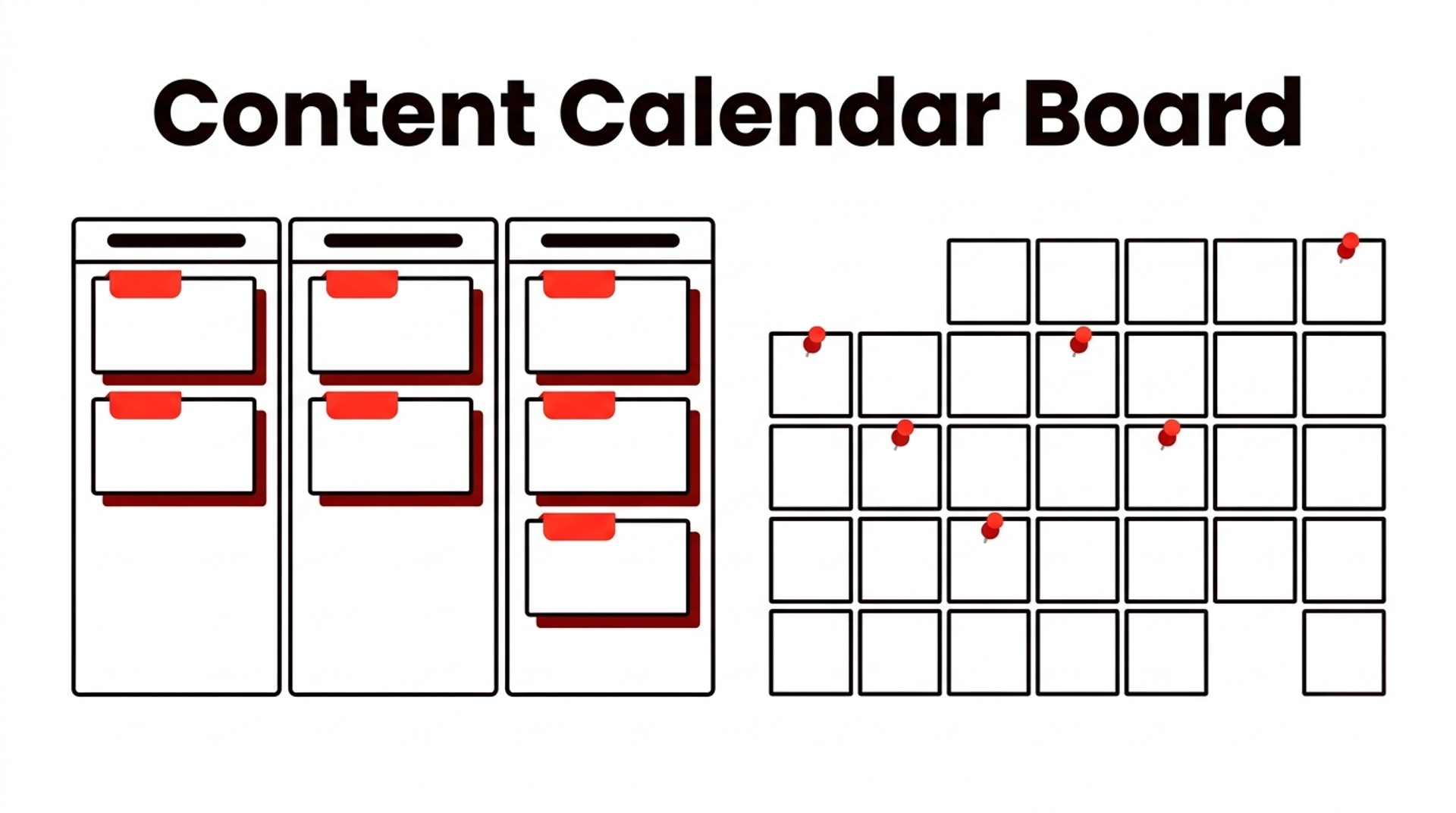
Trello works as a content calendar, and a functional board takes less than an hour to build. The basic logic is simple: each list on your board represents a stage in your publishing pipeline — Ideas, In Progress, In Review, Scheduled, Published — and each card represents one piece of content. You drag a card forward as the piece moves through those stages. That's the whole system. It's not sophisticated, but it covers everything a small-to-mid-size team needs to plan, assign, and track content without buying dedicated software.
The reason people keep landing on Trello for this job, rather than one of the fancier editorial tools, is that the free plan holds up well. You get unlimited cards, enough automations to handle routine tasks, and a calendar view that makes your publishing schedule immediately readable. None of that requires a paid upgrade.
What takes a little more thought is deciding how to structure your board before you start filling it with cards — because a board that maps your actual workflow will carry you for months, while one built on instinct on a Monday morning usually gets abandoned by Thursday. The sections below cover that setup in sequence, from board structure to automation to the edge cases where Trello probably isn't the right fit.
What the difference is between a content calendar and an editorial calendar
A content calendar tracks what publishes, when, and on which channel — it's the scheduling layer. An editorial calendar tracks what gets written, by whom, and in what state — it's the production layer. They often get muddled together, but the two answer fundamentally different questions about your content operation and where any given piece currently sits within it.
Think of it this way: your content calendar tells you that a blog post goes live Tuesday and an Instagram reel drops Thursday. Your editorial calendar tells you who's drafting that post, what angle it takes, and whether it's cleared review. One is a publication grid. The other is a production pipeline that tracks the messy internal journey a piece takes before it ever reaches that grid.
Trello's list-and-card structure handles both functions well — cards carry due dates, assignees, labels, attachments, and checklists, so you can pack scheduling and editorial metadata into a single card. The problem is that doing so without discipline turns a board into visual noise fast. A card titled "Q3 email newsletter" that also carries a draft link, a status label, a publish date, two checklists, and three comments starts to do too many jobs at once, and nobody can tell at a glance where the piece actually stands.
For a solo operator or a two-person team, one board covering both functions is usually fine — the overhead of maintaining a second board outweighs the tidiness it buys. For teams of three or more, especially where writers, editors, and a strategist each own a distinct slice of the process, separating a pipeline board (editorial) from a calendar view (scheduling) reduces crossed wires considerably. If you're deciding how to lay out these layers before building anything in Trello, this breakdown of content calendar formats and what each one is actually designed to track is a useful reference point.
Trello's own Editorial Calendar template folds both functions into a single workflow, which is a reasonable default for most small teams and a sensible place to start before you decide whether separation is worth the extra maintenance.
How to structure your Trello board for content planning
Six lists, named by stage, will give you a board that works as an actual production pipeline rather than a color-coded to-do list. Create them in this order: Ideas → In Research → Writing → In Review → Scheduled → Published. The skeleton is that simple — everything else lives inside the cards.
The simplest case for a six-stage layout is what it reveals compared to the three-column default. A "To Do / Doing / Done" board tells you content is moving, but it doesn't tell you where work is piling up, and those are very different pieces of information for anyone trying to manage throughput across a real editorial calendar — especially when you're juggling multiple writers, multiple formats, and a publish schedule that doesn't forgive slip-ups. Eight cards sitting in Writing for three weeks? Visible immediately. On a three-column board, you just see "Doing."
Stage | What it tells you | Common bottleneck sign |
|---|---|---|
Ideas | Volume of raw material | Cards never leaving this list |
In Research | Briefs being built | Authors not assigned |
Writing | Active drafting | Cards sitting 10+ days |
In Review | Awaiting editor sign-off | Editor capacity squeezed |
Scheduled | Ready, waiting on publish date | Publish dates slipping |
Published | Done and live | (No bottleneck — archive periodically) |
Each card should arrive in Writing with four pieces of information already filled in: the target keyword, the publish date, the assigned author, and the platform or channel (blog post, LinkedIn article, newsletter issue — whichever applies). Four fields. Non-negotiable. Add a checklist inside every card for the SEO fields that get forgotten under deadline pressure — title tag, meta description, and at least two internal links — because a checklist lets an editor tick items off rather than re-read the whole description to confirm what's been done, which saves a surprising amount of back-and-forth at the review stage.
Labels give you a cross-cutting dimension that the list sequence can't. Color-coding by format — green for how-to posts, orange for case studies, blue for newsletter issues — lets you filter without adding more lists, though which axis makes sense depends almost entirely on whether your writers specialize by topic or by destination. Pick one axis and commit; applying both simultaneously produces visual noise that defeats the purpose of filtering, turning what should be a clarity tool into its own kind of clutter that, in practice, most teams stop reading within a month. That said, the label system only holds if someone enforces it — a card without a label is invisible to any format-based filter, so make it part of the card creation habit, not an afterthought.
The Custom Fields Power-Up earns its place here for exactly two data points that don't belong in the card description: word count target and funnel stage (awareness, consideration, decision). Trello's free plan allows one active Power-Up, so Custom Fields is usually the right one to spend, because it turns cards into something closer to a structured brief rather than a loose collection of notes. If you want to see how those fields interact across a realistic month of planning, this walkthrough of a working content marketing calendar shows a fully built-out card in practice.
💡 One practical detail: keep the Published list trimmed. Archive cards monthly rather than letting it grow into a scroll of old work — a bloated Published column slows the board and makes card count feel like a productivity metric, which it isn't.

Does Trello have a calendar feature, and how do you turn it on
Trello has a built-in Calendar view. Since the 2023 update it requires no Power-Up — it ships as a native view on every plan, including Free, which means there's nothing to install and no tier upgrade needed before you can use it. To access it, open your board and click the Views menu in the top-left, next to the board name, then select Calendar from the dropdown.
What you see in that grid depends entirely on due dates. Cards without a due date simply don't appear — they're not hidden or greyed out, they don't exist in this view at all, which catches people out more than anything else when they first set up a content calendar Trello board: they build a dozen cards, flip to Calendar, and find a blank month. The fix is mechanical. Every card needs a due date.
The calendar displays due dates, not separate publish dates. For most content workflows, treating them as the same thing is the cleanest solution — set the due date to the day you intend to publish, and the calendar becomes an accurate publishing schedule. If your workflow separates "deadline for drafting" from "live date," you'll either need a custom field (available on Standard and above) or a naming convention in the card title to keep the distinction visible to anyone scanning the board.
⚠️ Two genuine limitations are worth naming. The native Calendar view doesn't support multi-day events, so a content sprint that runs across a week shows only as a single point on the final day. Recurring cards aren't supported without automation either — you'd need Butler rules (covered in the next section) to generate them on a schedule.
If those gaps are blockers, the Planyway Power-Up adds a proper timeline layer alongside a more configurable calendar, with drag-to-reschedule across date ranges. It costs extra, but for teams managing several content streams simultaneously, the additional visibility often justifies it.
How to use Trello's free template for a content calendar
Trello's template gallery already contains three free options worth considering — the Editorial Calendar, the Blog Content Schedule, and a Marketing Calendar — so you don't need to build a board from scratch. Copying any of them takes under two minutes: open the template page, click Use Template, pick your workspace, and Trello drops a fully populated board into your account. Go Live HQ's walkthrough covers the copying process in detail if you want a visual reference. Step-by-step.
Once the board lands, three things deserve attention immediately.
Rename the lists. The default column names are placeholders — "Ideas," "In Progress," "Done" — and almost nobody's actual workflow maps to them cleanly. Rename them to whatever your team actually calls the stages: Pitch, In Draft, In Review, Scheduled, Published.
Delete the example cards. They exist to demonstrate format, not to haunt your backlog for six months. Archive them all in one pass.
Add your team members. Assign them to the board before you start moving real work in, so cards can be attributed from day one rather than retrospectively.
⚠️ What to leave alone: the label structure and card format. Both templates ship with a label color scheme and a card checklist layout that solve real problems — problems you haven't run into yet. Resist the urge to remap all the colors on day one. Use the defaults for two weeks. That gives you enough lived experience to judge whether "purple = social post" is a distinction your team actually respects, or a classification nobody maintains past the first deadline.
The two templates serve different contexts. The Blog Content Schedule tracks drafts, illustration status, and linked assets per post — it assumes multiple people touching a single piece of content before it ships, so it suits a team with distinct writing, editing, and design roles far better than a solo setup. The Editorial Calendar is leaner, built around publication dates rather than production steps, which makes it the right starting point for a solo operator or a founder managing content alongside everything else. Pick the one that matches how your workflow runs in practice, not the one that sounds more organized on paper.

How to automate your Trello content calendar with Butler
Butler is Trello's built-in automation layer, available on every plan, and it handles the repetitive moving, tagging, and notifying that quietly eat up a content team's day. No integrations to configure, no Zapier account required — it lives inside your board and triggers actions based on card movement, due dates, or a button click.
Four automations do the heaviest lifting for content workflows specifically.
Archive on publish, log the date. When a card lands in your "Published" list, Butler can automatically archive it and stamp a "Publish Date" custom field with today's date. Your board stays uncluttered, and you get a passive record of when each piece actually went live — useful the next time someone asks how many articles shipped in Q3.
48-hour deadline reminder. A rule that fires a direct notification to the assigned card member two days before the due date catches missed deadlines before they become a Monday morning problem. Writers who live outside Trello will still get the alert via email or mobile. Set this once; it runs forever.
Recurring card duplication. For a weekly newsletter or a monthly roundup, Butler can duplicate a template card on a fixed schedule and drop it into your "To Do" list with the due date already calculated. The alternative — manually creating the same card every week — is the kind of low-stakes but real friction that eventually causes things to fall through.
🛠️ The "Ready for Review" button. This one replaces the most steps. A single button on the card can move it to the Review list, assign your editor, and post a comment that reads "Draft ready — please review by [due date]." Three actions, one click, zero chance of forgetting to tag someone. Build it under Butler > Button > Card Button, then string the actions together in order.
⚠️ One pitfall worth taking seriously: Butler rules cascade. Test each rule in isolation before activating a second one that touches the same card state — trigger it manually on a dummy card and watch what fires. If your "move to Review" rule sends a notification and your due-date rule also fires because the card just acquired a new member, the editor receives two alerts in under a minute. Easy to miss until the complaints start. Combining automations without that check is how you end up with a board that sends five Slack pings for one card move, and then everyone turns notifications off entirely — which defeats the whole arrangement, since a silenced notification system is functionally identical to having no system at all.
Start with the archive rule and the 48-hour reminder. Add the button once those are stable.
How to run a social media content calendar in Trello
A social media content calendar in Trello works differently from a blog calendar, and that gap is mostly about speed. Blog posts move through a two-week arc; a social post can go from idea to live in forty minutes, so the board structure has to reflect that pace.
The list columns that make sense here are platform-specific stages: Caption Written, Asset Ready, Scheduled in Buffer, Posted. That's tighter than a blog workflow and more honest — "In Review" is a luxury when you're posting five times a week across three channels.
One card per post, not one card per campaign. This catches people out. A campaign is a collection of posts, and burying ten caption variations under a single card turns every status update into an archaeology dig. Instead, keep campaigns as labels or as a parent card that links to the individual post cards — Trello's card linking handles this cleanly, and your list stays scannable.
Labels carry most of the filtering weight here. Assign one color per platform — Instagram, LinkedIn, X, TikTok — and suddenly you can filter the board to see only what's queued for LinkedIn before a Monday morning sprint. Color discipline pays off fast. Without it, a board that handles five posts a day across three channels becomes visual noise before the end of the first week.
Attach the actual image or video asset directly to the card — not a link to a folder, not a Slack message saying "the file is in Drive." When the designer uploads to the card and the copywriter pulls the caption from the same card, you eliminate an entire category of version-control confusion. Trello accepts attachments up to 250 MB on paid plans, which covers most social assets without compression.
For automation, a Zapier or Make workflow that watches the Scheduled list and auto-schedules the post in Buffer or Later is one of the better time saves available in this setup — moving the card triggers the post, with no copy-paste, no tab-switching, and no forgetting that the step exists.
💡 One list that blog calendars skip but social calendars need: Repurpose. Drop any card there when the post outperforms expectations or contains an idea worth reworking into a Reel, a thread, or a newsletter paragraph. Without a dedicated holding area, those posts get recycled eventually — but only when someone remembers to go looking, which in a fast-moving content operation is rarely and late.

When Trello is the wrong tool for your content calendar — and what to use instead
Trello stops working as a content calendar the moment your board becomes harder to manage than the content itself. That threshold arrives sooner than most teams expect — typically around 3 to 4 active contributors and 20 to 30 cards in flight simultaneously, at which point lists grow too long to scan at a glance, cards pile up in "In Review," and nobody has a clear picture of what's actually blocked versus what's simply been forgotten.
The analytics gap makes this worse. Trello has no native reporting on time-in-stage, so you can't tell whether content is stalling at the brief phase or the editing phase without installing a third-party Power-Up — which adds cost and, usually, another tool to maintain. If your weekly editorial meeting now involves somebody manually counting cards and reporting back, that overhead is the signal. The calendar is consuming more attention than the content it's meant to organize.
⚠️ Two alternatives deserve naming directly:
Notion is the better choice when your content operations need linked databases, inline documents, and rollup views in a single workspace. A team that wants to keep briefs, drafts, and the publishing schedule connected without copy-pasting between tabs will find Notion's structure more expressive than Trello's card model.
Airtable wins when the priority is spreadsheet-style filtering and pivot-style reporting — say, content volume broken down by channel, author, or quarter. It behaves like a relational database with a friendlier interface, which suits content leads who need to answer "how many pieces did we publish on LinkedIn in Q1?" without exporting anything.
But both of those tools solve a tracking problem. A different kind of team faces something else entirely: the calendar sits half-empty. Not because tracking is broken, but because production volume is simply too low to fill it — a situation no workflow tooling can fix on its own. For that gap, a tool like Bold Pilot handles keyword research, article writing, and publishing autonomously, keeping the pipeline full without a larger headcount. According to Bold Pilot's own published data, the median article produced through the platform runs 3,563 words across 161 published articles on 5 sites — output volume that would overwhelm even a well-organized Trello board if someone had to track every piece manually.
The limitation worth flagging: Bold Pilot isn't a visual pipeline tracker and doesn't replace editorial review workflows. If approvals, feedback loops, and stakeholder sign-off are the bottleneck, you still need Notion, Airtable, or even a simple spreadsheet sitting alongside it.
FAQ
Does Trello have a calendar feature?
Trello includes a built-in Calendar view that displays cards by their due dates across a monthly grid — available on all plans, including free. Turn it on by opening the Views menu at the top of your board and selecting Calendar. Cards without due dates won't appear there. So the view works best once you've made due dates a consistent habit across your pipeline, applied to every card before it moves past the Brief stage.
Is Trello free to use for a content calendar?
Yes. Trello's free plan supports unlimited cards, up to ten boards per workspace, and includes the Calendar view and basic Butler automation — enough to run a fully functional content calendar for a solo creator or a small team. The paid plans (Standard starts at $5 per user per month) add unlimited boards, more Butler command runs per month, and additional views like Timeline, which matter more as the team or the volume of content grows.
What is the difference between an editorial calendar and a content calendar?
A content calendar tracks what you're publishing and when — scheduling layer, dates, channels, frequency. An editorial calendar goes further by capturing the strategy behind each piece: the target audience, the goal, the assigned writer, the stage in a review workflow. In practice, a Trello board can serve as both simultaneously, with list stages handling the editorial pipeline and due dates plus the Calendar view handling the scheduling side.
Does anyone still use Trello in 2026?
Trello remains one of the most widely used project management tools available, with tens of millions of registered users and active development from Atlassian. Its card-and-list model maps cleanly onto a publish pipeline without requiring much configuration. That simplicity keeps it competitive. The honest caveat is that teams managing more than two or three channels simultaneously, or needing deep analytics running alongside their calendar, often find themselves reaching for a purpose-built alternative within six months — not because Trello broke down, but because its generalist shape stopped fitting the specific contours of the work.
How to start your Trello content calendar today
Copy the Trello Editorial Calendar template and rename its default lists to the six stages described above — Idea, Brief, In Progress, In Review, Scheduled, and Published — and your structural work is essentially done. Before inviting anyone else to the board, set due dates on the first five cards and activate Butler's 48-hour reminder rule. Those two steps matter more than they look: due dates make the Calendar view useful from day one, and the automation closes the gap between a board that looks organised and one that actually keeps people moving.
The whole setup takes under an hour. The harder part arrives immediately after, when the board is tidy and empty and it becomes easy to treat it as an administrative task rather than a working tool — a finished deliverable rather than a living system. Boards earn trust through motion: a card that moves from In Progress to In Review and then gets a comment from an editor is doing real work, while a board full of cards that nobody touches after Monday's standup is just a prettier version of a spreadsheet nobody reads. The distinction isn't about Trello specifically; it's about whether the tool is wired into how your team actually communicates.
If you're coming from a shared Google Sheet or a loose Notion page, the transition is worth it for the card-level threading alone — comments, attachments, and checklists living on the piece itself rather than in a separate Slack thread that everyone has to go hunting for. If you're running a high-volume social media operation across five platforms and need built-in analytics, re-read the section on when Trello isn't the right fit before committing. For everyone else — a content team of one to eight people, a predictable mix of blog posts and social content, and a willingness to spend twenty minutes on Butler rules — this board structure is a reasonable place to anchor your planning for the next quarter.

📢 Share this article
📚 More articles
What a copywriting training course covers, how long it takes to get job-ready, and which format fits your goals — including free options with certificates.
SEO writing automation testing tells you whether your pipeline produces content that ranks—before it goes live. Here's what to validate and how.
Practical strategies for increasing organic traffic in 2026—covering keyword selection, content refreshes, technical fixes, and when AI tools actually help.
Automated organic traffic management runs keyword research, content creation, and publishing in one pipeline.